
Fill and Sign a PDF with PdfCraft: What Survived Our Save Test
A reproducible PdfCraft v0.21.1 test of form values, checkbox state and a visible signature, with saved files and an independent reopen check.
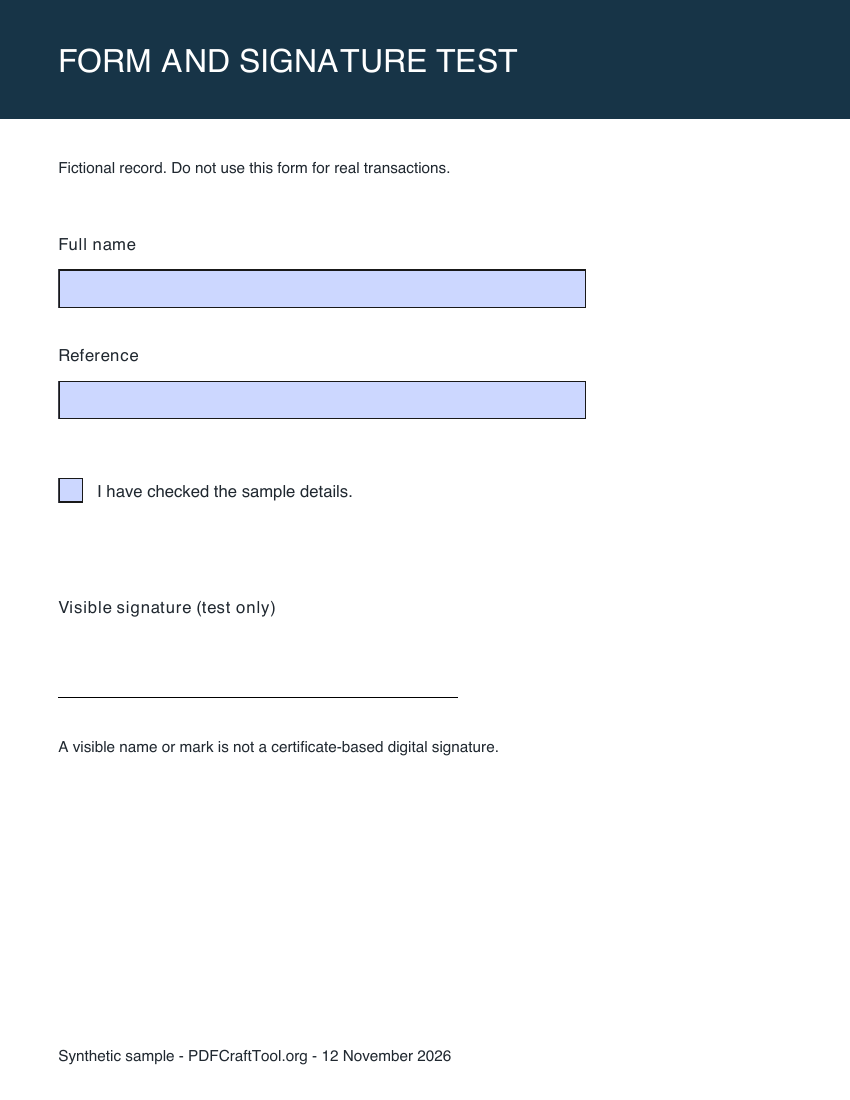
Filling a PDF is only useful if the values survive saving and the recipient can see them. A form can look complete on screen while still carrying an empty or stale field value. A signature-shaped mark can also be mistaken for a certificate-based digital signature. These are different things to check before sending the result.
We tested PdfCraft CLI v0.21.1 on macOS 26.4.1, Apple silicon, on 12 November 2026, using a synthetic PDF with two text fields, a checkbox and a blank space for a visible signature. We filled the fields, added a typed signature mark, saved a new PDF and reopened it. The screenshots are renders of our own input and output, not pictures of a simulated application interface.
The result from this sample
The saved file retained Alex Example in the name field, FORM-108B in the reference field, and the checked state of the approval box. PdfCraft reported the same values when it opened the saved file in a second document session. We also inspected the PDF with an independent library: the canonical form values and page widget values agreed, and the widgets had appearance streams.
The typed signature remained visible when the output was rendered with Poppler. It was stored as a stamp annotation, not as a certificate signature field. Our test therefore demonstrates form filling and a visible Fill & Sign mark. It does not demonstrate certificate trust, timestamp validation, signer identity verification or a recipient's acceptance requirements.
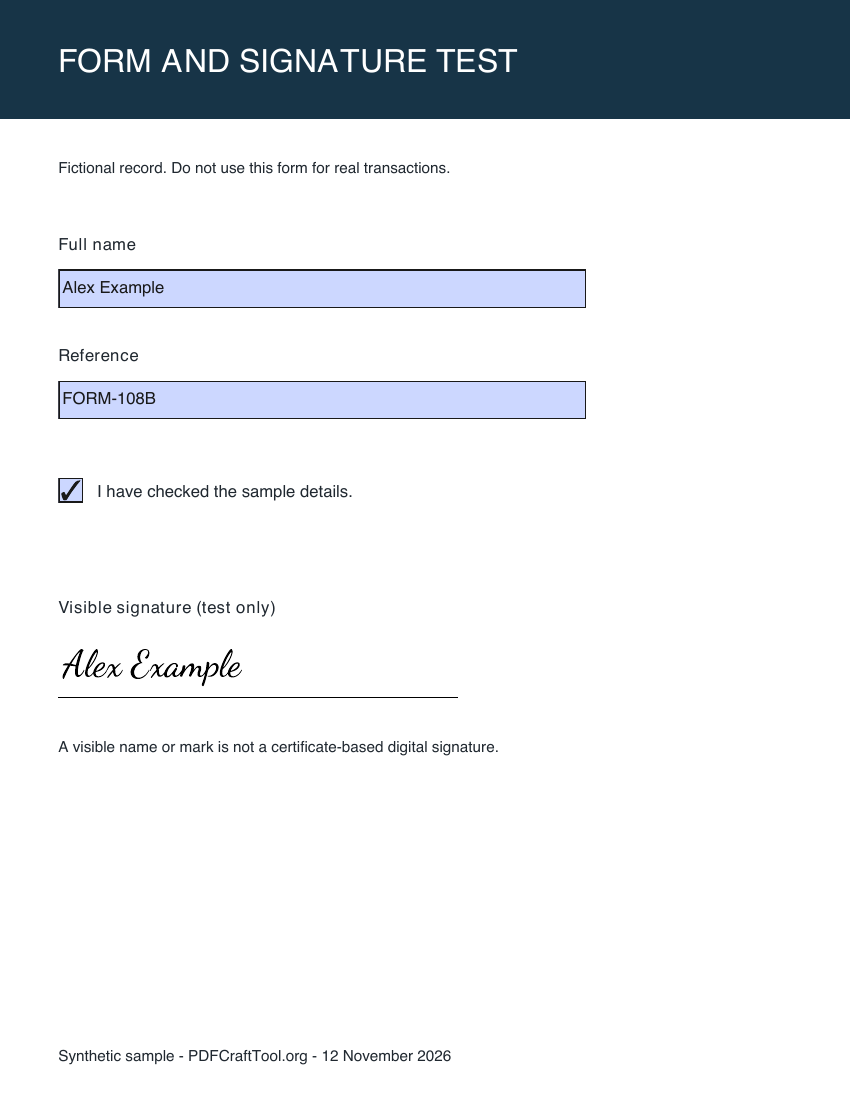
The actual saved output rendered with Poppler. The visible signature is a stamp annotation; the form fields remain interactive.
Download the blank test form and completed result if you want to inspect the behavior yourself. All names and references are fictional.
Identify the type of form you have
Start by clicking a field. An interactive PDF form has named fields with stored values. A flat scan or an ordinary page with blank lines may have no fields at all. Writing text over a line can make the page readable, but it does not create the same form data that a receiving system might expect.
Our input was a simple AcroForm, generated specifically for this test. It contained no calculations, embedded scripts, XFA structures or certificate fields. That narrow scope matters: success on this sample cannot establish that an employer's complex form or a government workflow will behave identically.
If you are preparing a document for another person, ask which output they need: an interactive PDF, a final visual copy, or a particular signing workflow. Check their instructions before flattening fields or adding marks. Keep an untouched original so you can restart without trying to remove edits from your only copy.
Inspect fields before filling them
The official CLI can list form fields with form_fields. The response includes names, types and current values. This avoids guessing that the field labelled “Full name” on the page is also named full_name internally.
We first opened the input and listed its fields. PdfCraft reported two text fields and one checkbox. We used the returned names when calling form_fill. For a different PDF, substitute the actual field names and inspect its options before attempting to fill a radio group, list or dropdown.
Install the appropriate CLI package from the download page. On Windows, first check the architecture using the installation guide. The following example assumes the CLI is available as pdfcraft-cli in your terminal.
Reproduce the fill and signature steps
Save this script as forms-steps.json in the folder containing the blank sample. It opens the PDF, fills the named fields, places a visible signature and saves a separate copy.
[
  { "tool": "doc_open", "args": { "path": "form-blank.pdf" } },
  { "tool": "form_fields", "args": { "doc": 1 } },
  {
    "tool": "form_fill",
    "args": {
      "doc": 1,
      "values": {
        "full_name": "Alex Example",
        "reference": "FORM-108B",
        "approved": true
      }
    }
  },
  {
    "tool": "fill_sign_add",
    "args": {
      "doc": 1,
      "page": 1,
      "type": "signature",
      "at": [45, 478],
      "text": "Alex Example"
    }
  },
  { "tool": "doc_save", "args": { "doc": 1, "path": "form-completed.pdf" } }
]
Run the script from that folder:
pdfcraft-cli run --script forms-steps.json --root . --report
The signature position is specific to our sample. PdfCraft takes coordinates in points from the page's top-left corner for this operation. Reusing those coordinates on a different form can put the mark over the wrong content. Inspect the output page before using it elsewhere.
We left the form editable and did not request flattening. A separate output filename preserves the blank source. If you need a final flattened copy, make that a deliberate additional operation and check its appearance; do not assume that flattening is required for every recipient.
Check both appearance and stored values
Close the working document and reopen the saved file. Confirm that the full name and reference are visible, the checkbox is marked, and the signature stays inside its intended area. Look at long values as well: a field can retain all the text internally while displaying only part of it.
Then check whether the form is still interactive if that is what you intend to deliver. In our sample, the three original fields remained present. An independent inspection found their values in the form tree and the corresponding page widgets, with nonempty appearances. That additional check is stronger than a screenshot alone.
For your own document, inspect radio buttons, required fields and calculated totals separately. Those behaviors were outside this test. Pay particular attention to accented names and scripts that need different fonts; a successful ASCII example does not prove that every name will render correctly.
Understand what the visible signature means
The mark in our output is a scripted rendering of the fictional name “Alex Example.” It is visible on the page, and the PDF stores it as an annotation. There was no certificate-based signing operation in this workflow.
If the recipient asks for a digital certificate, a timestamp or a particular signing service, this example does not verify those requirements. Use a workflow that matches the request and inspect the resulting signature information in a capable reader. Do not describe a decorative name as certificate-verified simply because it looks like handwriting.
For everyday form preparation, the practical habit is straightforward: preserve the original, fill known fields, save a new file, and reopen it independently. Our Acrobat migration guide explains how to evaluate a broader document workflow, while the OCR guide covers pages that are images rather than interactive forms.