PdfCraft vs Adobe Acrobat: A Practical Migration Guide
Compare PdfCraft and Adobe Acrobat using your real documents. Test page tools, forms, text, scans and saved outputs before moving your PDF workflow.
The useful question in a PdfCraft vs Adobe Acrobat comparison is whether PdfCraft can complete your particular PDF workflow. Reading a report, changing its page order and returning a complex interactive form are different jobs. A successful test of the first does not establish that the other two will work exactly as you expect.
This guide provides a practical evaluation you can run with copies of your own documents. It is a migration method, not a claim that we tested your files or that every release has identical capabilities. Begin with the homepage for the project overview, or use the existing feature comparison for broader context. Here, the focus is the decision to move a specific task.
1. Be precise about the Adobe product you use
“Adobe” may mean Acrobat Reader, an Acrobat Standard or Pro subscription, a browser service, or an organizational signing workflow. Record which application and tools you actually use before comparing them with a desktop alternative.
Adobe's current plan comparison distinguishes the paid products and their included capabilities. Check the current offer for your region if cost matters; subscription terms, promotions and add-ons can change. A quoted monthly figure without its billing commitment is a poor basis for a migration decision.
Make a short list from the last five PDF jobs you completed. For each one, write the input, action and expected output. For example: “two monthly reports → combine in date order → one PDF with working bookmarks.” That sentence is much more testable than “I need a PDF editor.”
2. Separate everyday tasks from specialist requirements
For reading, searching, rearranging pages and assembling documents, begin with the basic workflow in our PdfCraft tutorial. The upstream project documentation describes its tools and platform support.
For OCR, existing-text editing, signatures, accessibility work or complex forms, examine the installed release and the exact output you need. Do not rely on an old comparison that labels a developing feature as permanently absent. Equally, the presence of a tool in a menu does not prove it meets every requirement of a specialized workflow. Consult the release notes and test the result.
A sensible first decision is to move one routine task, such as combining internal reading material, while leaving a more demanding workflow in its current application until its checks pass. You do not have to replace every PDF tool on the same day.
3. Build a representative test set
Create a folder containing copies of five document types:
- A text-heavy report with bookmarks and a contents page.
- A scanned page with small text or a slightly uneven background.
- A fillable form with text fields, checkboxes and a dropdown if you use those.
- A long document that needs pages removed, inserted or reordered.
- A file with a feature important to your work, such as layers, non-Latin text or an attachment.
Include typical files, not only the simplest examples. If most of your PDFs are generated by one reporting system, take a sample from that system. Keep an untouched original beside each working copy, and write down the intended change before opening either app.
Use neutral sample data for forms and comments. The purpose is to compare behavior, so you do not need to expose private client information to create a useful test case. Keep tests small enough that you can inspect the entire output.
4. Compare reading and page organization first
Open the same report in both applications. Inspect the first page, a page with a table and a page with an unusual font. Search for the same phrase, copy the same paragraph, and try a bookmark or internal link. Note differences that affect your work, rather than trying to score every toolbar button.
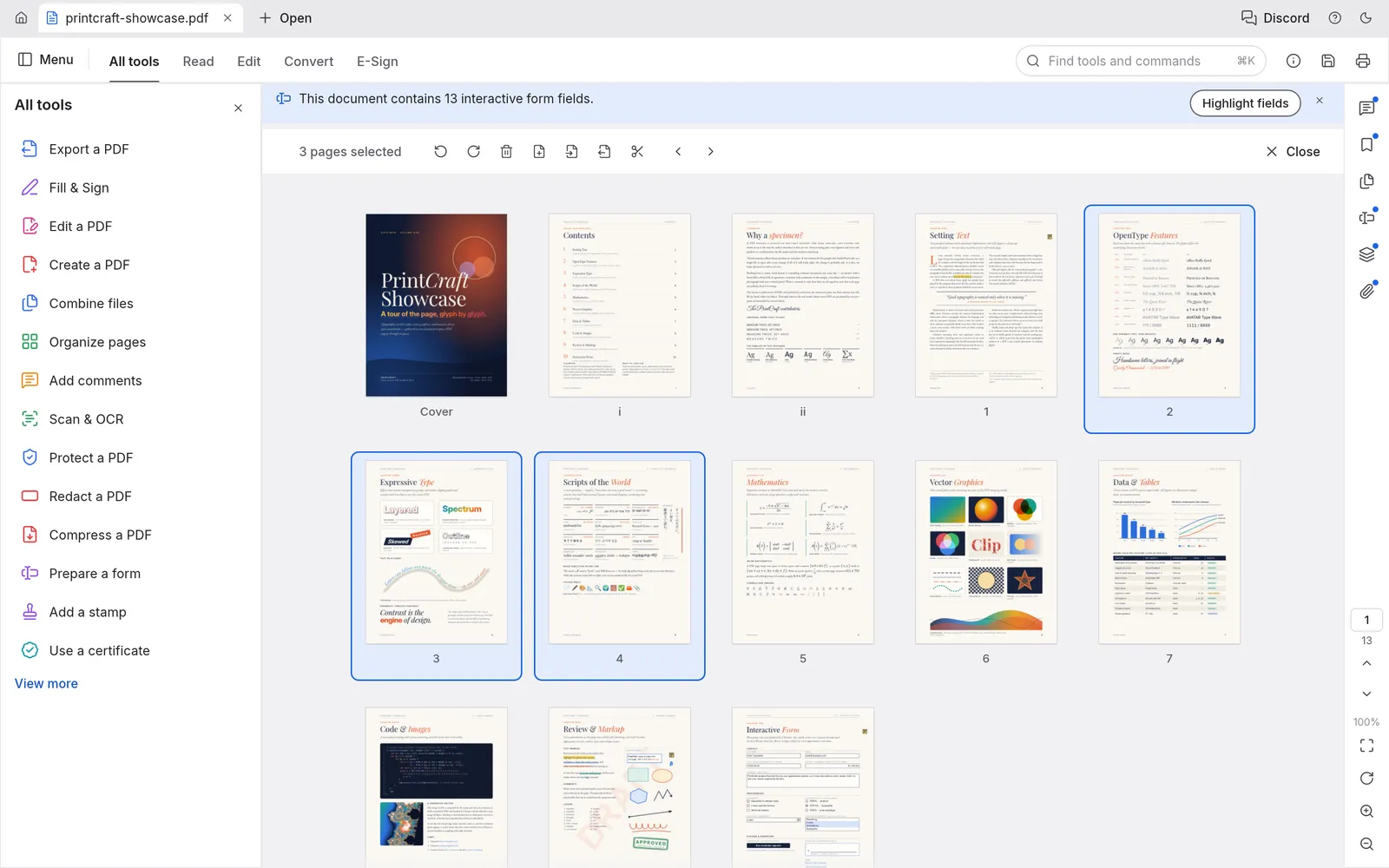
Then perform a page-order exercise. On a copy, remove one known blank page, rotate a sideways page and place an appendix after the report. Write down the expected final page count. Save the result, reopen it and check both the count and the transition into the appendix.
For a fair comparison, use identical inputs and the same change sequence. If one application has already altered a file, do not use that modified file as the other's starting point unless that is intentionally part of your workflow.
5. Check forms, scans and edited text separately
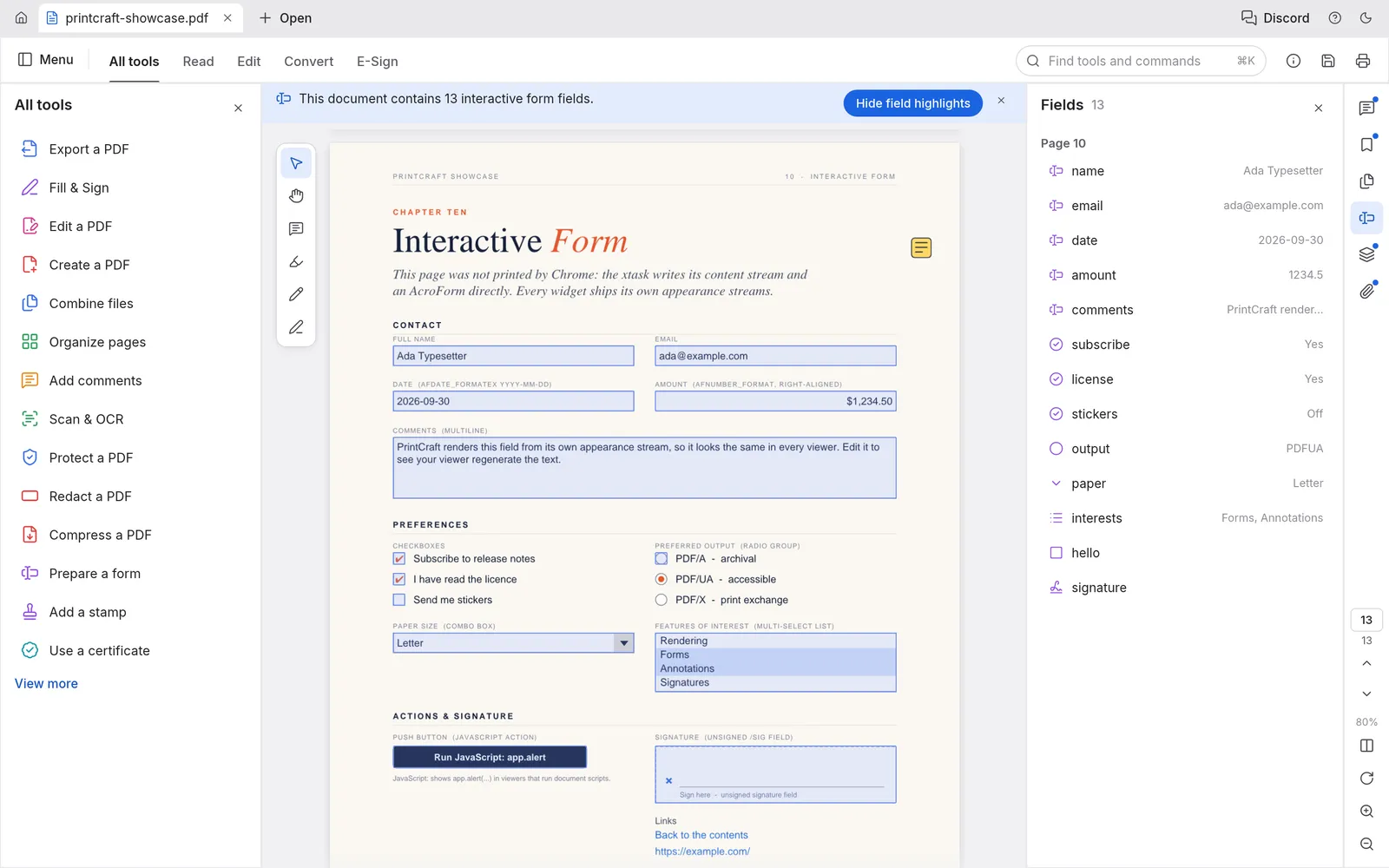
Forms: Fill a text field, toggle a checkbox and choose a dropdown value. Save and reopen the result in the application your recipient will use. Check that values remain present, that long text is not unexpectedly clipped and that the form remains editable if editability is required. A visually similar screenshot is not enough to confirm field behavior.
Scans: Choose a page with text you can verify manually. After text recognition, search for a specific word and copy a sentence to a plain text editor. Compare names, digits and punctuation carefully. Adobe documents its scanning and recognition tools in the scan-to-PDF guide; use the selected PdfCraft release's notes to establish its available workflow.
Existing text: Try a modest edit on a working copy. Check the changed line and its neighbors, not only the inserted word. Reopen the file in another viewer to see whether line breaks, fonts and spacing remain suitable. If the source document is available, updating that source and exporting a new PDF may be easier than making a complicated layout change inside a PDF editor.
Treat these as three independent pass/fail checks. A form that saves correctly says nothing about OCR quality, and accurate OCR does not establish that a particular form's calculations will work.
6. Verify features that are easy to overlook
Layers, links, bookmarks and embedded attachments can matter even when the visible page looks unchanged. Include only the features you actually depend on, but do test them after an editing or combining operation.
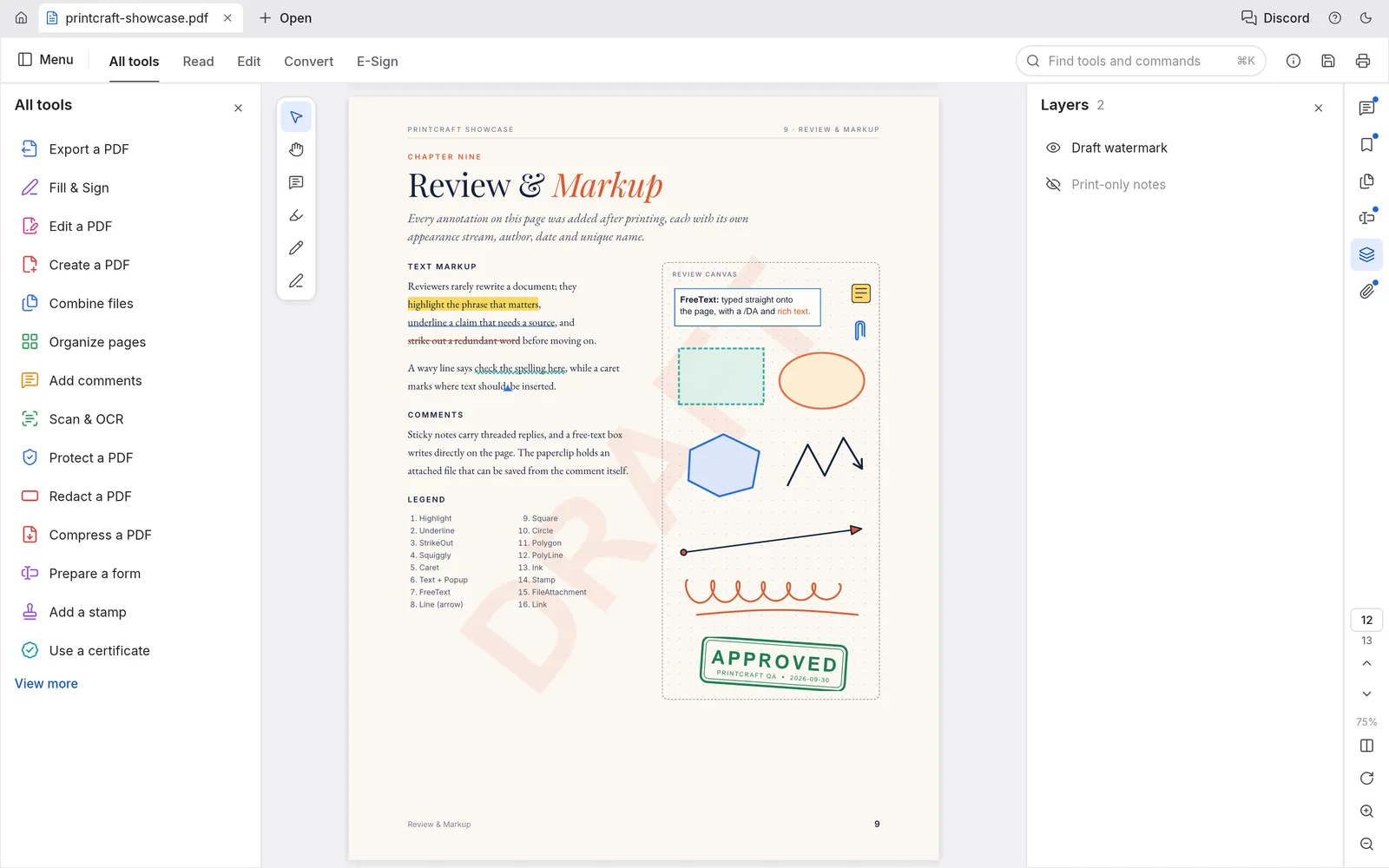
For a layered drawing, note which layers are initially visible, toggle one, then reopen the saved output. For a bookmarked report, follow a bookmark after rearranging pages. For an attached source file, confirm it is still accessible when that is part of the handoff. Write each result in your notes so that a future release can be evaluated against the same criteria.
For a signature-dependent process, confirm the recipient's required signing and validation workflow. A drawn signature, a certificate-based digital signature and a managed signature request serve different purposes. Do not substitute one solely because the visual mark looks similar.
7. Decide using outcomes, not a feature count
A small evaluation sheet can have four fields per task: input file, required result, observed result and decision. A decision might be “move now,” “keep testing,” or “retain current tool.” Record the app version with each result so a later release does not get judged by an old failure.
Choose PdfCraft for a task when your representative files produce the expected output and the workflow is comfortable enough to repeat. Keep another application for tasks that fail your checks or depend on a service your organization already uses. If several alternatives are still in consideration, the alternatives overview can help you narrow the next comparison.
Keep the original and the final saved output for each test. When a difference appears, those two files are more useful than a memory of which button you clicked. If you report an issue, include a minimal non-sensitive sample, the version, the steps and what you expected to happen.
Common migration questions
Can PdfCraft replace Acrobat Pro for every user?
There is no universal answer. Someone who mainly reads and rearranges PDFs has different requirements from someone who depends on a specialized form, signing service or publishing workflow. Make the decision per task using your own output checks.
Should I uninstall Acrobat immediately?
Keep your existing workflow available until the required tests pass. Start with one low-pressure job, compare the delivered result, then expand. Changing the default application is a convenience step after evaluation, not a test of compatibility.
Is the browser tool on this site the same application?
No. The online tools on this site provide their own browser workflow. Evaluate them separately from the upstream desktop app. The Windows and Linux guides explain desktop setup.
How should I compare speed?
Time the whole task, including opening, making the change, saving and checking the output. Repeat with the same files, on the same computer, under similar conditions. One instant launch or one slow document is not a reliable general performance claim.
What is the best next step?
Pick a routine PDF job you repeat every week and run the first-workflow tutorial with a copy. Keep a short record of the result. That gives you a concrete basis for deciding which part of your PDF work to move next.
Screenshots come from the upstream project showcase; some document and interface labels say PrintCraft. Appearance and available tools vary by release and platform. View the upstream project