
PdfCraft PDF to Word Test: Where the Layout Changed
Compare a source PDF and PdfCraft v0.21.1 DOCX export: text columns, table widths, missing chart bars and a title that failed to appear in LibreOffice.
A PDF-to-Word conversion can preserve useful text while changing the document enough to require manual reconstruction. To see what that means in practice, we exported a deliberately structured PDF with PdfCraft and inspected both the resulting DOCX and a rendered preview.
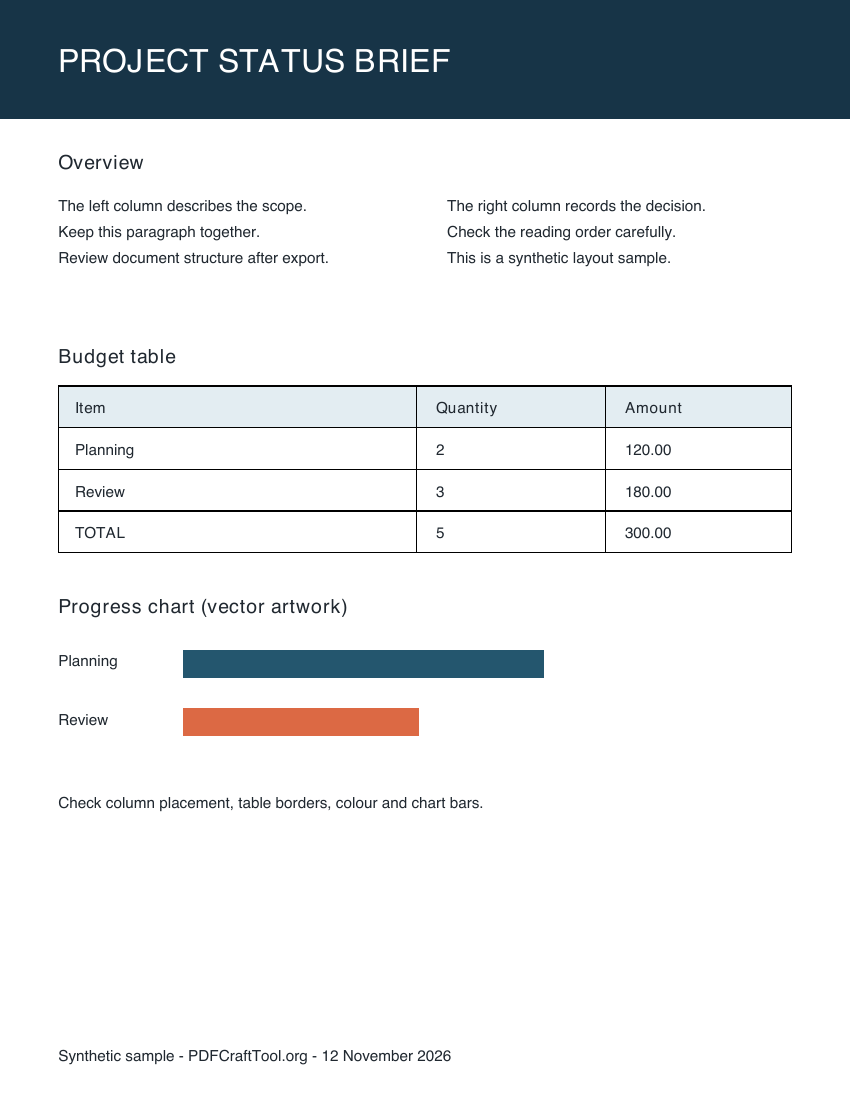
Our test used PdfCraft CLI v0.21.1 on macOS 26.4.1, Apple silicon, on 12 November 2026. The input was a synthetic one-page report with a colored title banner, two text columns, a bordered budget table, vector chart bars and a footer. We exported through doc_export_office, inspected the DOCX XML, and opened the file in LibreOfficeDev 26.8.0.0.alpha0 to render a PDF preview. We did not test the output in Microsoft Word, so the visual findings below are specific to that renderer.
What the export preserved and changed
PdfCraft completed the export without reporting truncated pages. The DOCX contained the report's text, the budget values and table structures. That is useful, but the success result did not mean the page looked the same.
In the LibreOffice preview, the two text columns remained side by side. The budget table retained borders and values, but its column proportions changed and “Amount” wrapped onto two lines. The colored title banner and chart bars were absent. The title text existed inside the DOCX XML but was not visible in the rendered preview. The footer moved up beneath the body rather than staying near the bottom of the original page.
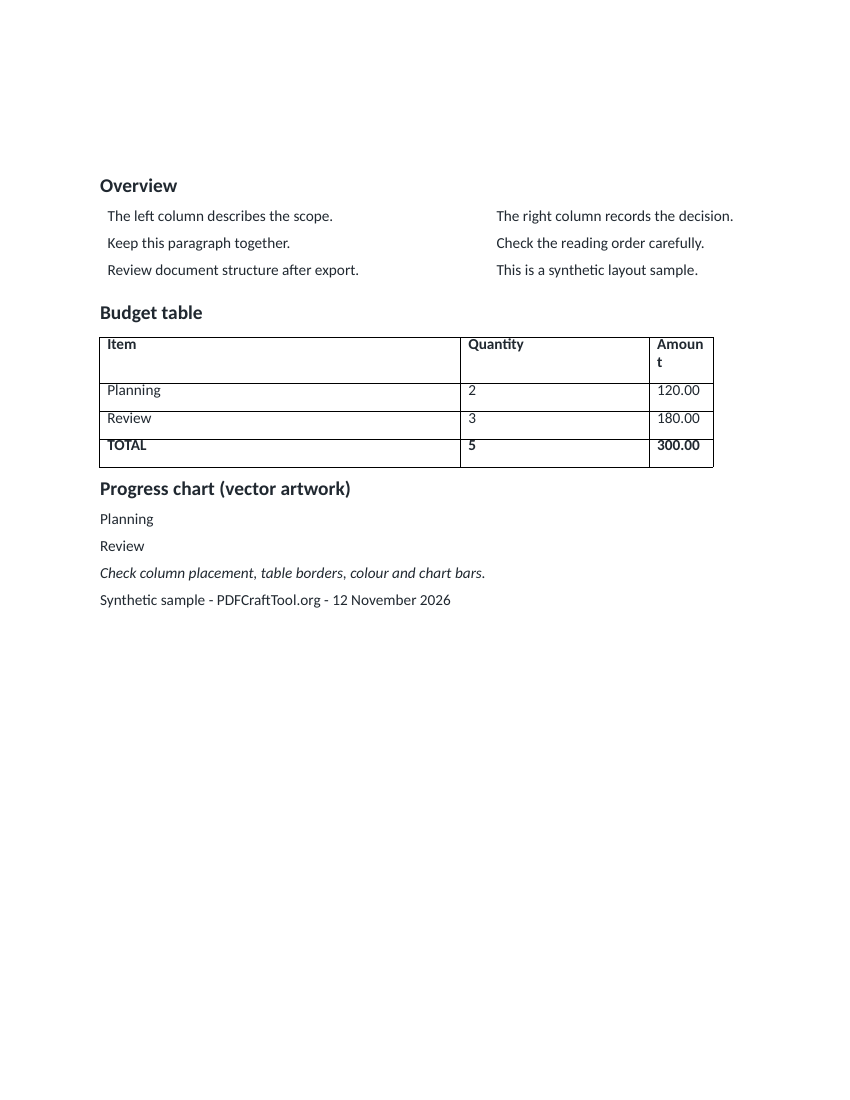
The actual DOCX export rendered through LibreOffice. Compare it with the source PDF above; this is not a Microsoft Word screenshot.
Download the source PDF and unedited DOCX export to compare them in your own editor. The report uses fictional data. We have not repaired the output shown here, because the purpose is to show what the tested conversion produced.
Why a PDF's appearance does not map neatly to Word
A PDF describes where page content appears. An editable document also needs a structure: paragraphs, table cells, columns, styles and page sections. A converter has to infer some of that structure from the page. Two items that sit next to each other might be a table row, separate columns or unrelated labels.
Our source deliberately included examples that make those decisions visible. The table had real drawn borders, which gave the converter information for creating cells. The chart bars were vector rectangles rather than text, and they did not appear as editable chart content in this export. A successful text recovery therefore cannot be treated as a complete graphics conversion.
The release's official documentation also describes limitations in Office conversion. Our observations add a specific sample and output to that general warning. They do not establish how every report, invoice, brochure or scanned document will convert.
Prepare a useful test before converting a whole document
Use a copy of the PDF. Choose pages that represent the difficult parts of the document: a table, a multi-column section, a graphic and a page with unusual fonts. Testing only a plain introduction can hide the reconstruction work waiting in later pages.
Check whether the source contains selectable text. An image-only scan needs recognition before its words can be recovered as editable text. Our sample was a digitally generated PDF with a text layer; we did not combine OCR and Word export in this test. If your input is a scan, first follow the scanned PDF OCR guide and verify the recognized words.
Decide what you need from the conversion. Recovering a few paragraphs for a new document is a different task from reproducing an existing report exactly. A text-first result may be enough for rewriting, while a publication with strict positioning can require a return to the original source file or manual reconstruction.
Reproduce the export
Install the CLI package for your system from our download page. Put the sample PDF in a working folder and save the following as word-steps.json:
[
  { "tool": "doc_open", "args": { "path": "layout-source.pdf" } },
  {
    "tool": "doc_export_office",
    "args": { "doc": 1, "path": "layout-export.docx" }
  }
]
Run it from the same folder:
pdfcraft-cli run --script word-steps.json --root . --report
The output extension selects Word format. We used the returned report to confirm that the command completed and did not report truncated pages. We then opened the actual file for the appearance check. The CLI result is useful evidence about the operation; it is not a substitute for reading the exported document.
The upstream tool maps this operation to Export a PDF → Word. The script is the route we exercised, so these results do not make a claim about the current placement of controls in every desktop or web build.
Review the output in a deliberate order
Begin with content completeness. Check headings, paragraph starts, dates, references and totals against the source. Our example preserved the table's values, including 300.00, but that alone would not catch missing chart bars or a title that fails to display.
Next inspect reading order. Follow each column from top to bottom and make sure text has not interleaved. In our rendered output, the two sample columns remained separate. Do not generalize that result to documents with floating text boxes, footnotes, marginal notes or many columns.
Then check table behavior. Click into cells, inspect merged cells and compare column widths. A long label wrapping in a narrow cell may be easy to repair; an amount moved into the wrong row is a different problem. Read the values after any repair, since layout changes can make mistakes harder to notice.
Finally review page-level appearance: the title, background colors, illustrations, chart graphics, whitespace and footer placement. Our test exposed problems in exactly this layer. The DOCX contained the title string, yet the LibreOffice render did not show it. Searching the document's text would not have been enough to verify the finished page.
When to repair, reuse or choose another route
If the goal is to reuse paragraphs and a simple table, an imperfect export can still save work. Rebuild missing headings and graphics in the target editor, check the table, and render the edited result before sharing it. Keep the original PDF beside the new document during that review.
If the visual design must remain exact, first look for the original editable source. Recreating a layout from its final PDF representation often means making design decisions again. An exported DOCX that appears plausible can still differ in line breaks, font metrics or page breaks when opened on another machine.
For this sample, we would use the export as a starting point for reconstruction, not as a finished replacement for the source report. We did not measure conversion speed, assign a fidelity percentage or compare competing converters. To assess a broader switch, use the PdfCraft versus Acrobat migration guide with representative files from your own work. If you find a version-specific change that improves or breaks this example, send us a correction with the version and a reproducible sample.