OCR a Scanned PDF with PdfCraft: A Tested Text Extraction Workflow
Turn an image-only PDF into searchable text. A PdfCraft v0.21.1 CLI test with Tesseract, a missing-model fix, downloadable samples and checks after saving.
A scanned PDF can look perfectly readable while containing no searchable text. The letters are pixels, so selecting a sentence or searching for an invoice reference may find nothing. OCR adds a text interpretation of those pixels. The useful test is whether the saved file contains the words you need, not whether a progress bar reaches the end.
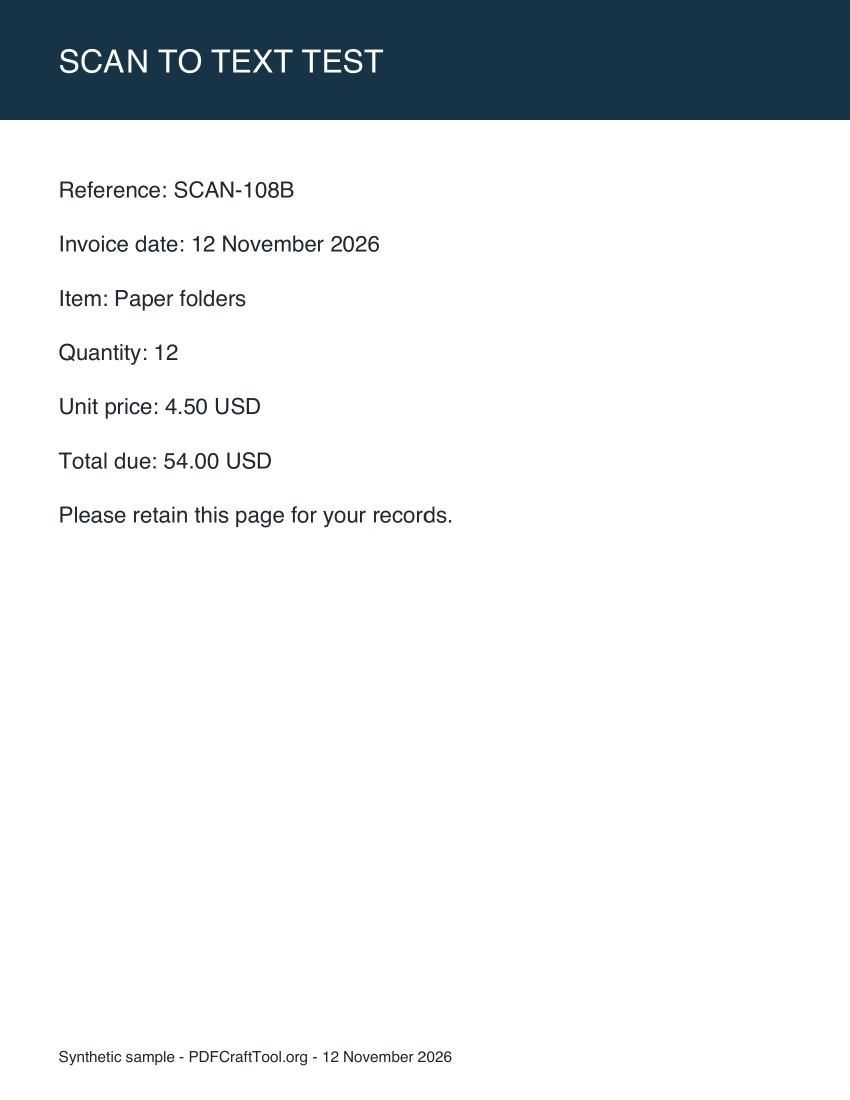
We tested PdfCraft CLI v0.21.1 on macOS 26.4.1, Apple silicon, on 12 November 2026. Our input was a synthetic English invoice-style page rendered to an image at 200 dpi and placed in a PDF with no text layer. We verified that ordinary text extraction returned an empty string before OCR. This is a reproducible command-line check, not a test of the desktop buttons, handwriting recognition or every scan quality.
What worked, and what needed changing
The downloaded CLI package did not have usable built-in recognition models in the locations reported by ocr_status. Requesting the ocrs engine failed with a model-not-installed error. We then selected the locally installed Tesseract 5.5.3 engine through PdfCraft. That run succeeded, saved a searchable PDF and exported text.
The saved PDF contained SCAN-108B, 12 November 2026, 4.50 USD and 54.00 USD. We checked these strings by reopening the output with an independent PDF library, rather than relying only on the command's success message. This establishes that the clean English sample became searchable. It does not establish an accuracy rate for photographs, faint print, tables, handwriting or other languages.
You can download the image-only input, searchable result and plain-text export to inspect the same example. The values are fictional.
First check whether OCR is necessary
Open a copy of your PDF and search for a distinctive phrase that is visible on the page. Try selecting a line and copying it into a plain-text editor. If the copied text is sensible, the document already has a usable text layer for that portion of the page. Running OCR again may add work without solving the actual problem.
Mixed documents need more care. A cover page can contain real text while the attachment is a scan. Check a page from each section. A page can also have a searchable header above an image of the important content. Do not conclude that the whole document is searchable because its page number can be selected.
PdfCraft's recognition tool supports skipping pages that already contain text, and a force option for cases that need another pass. Start with the ordinary behavior on a copy. Use a forced run only after checking what the existing text layer contains, then inspect the result for duplicate or conflicting words.
Check the recognition engine before starting
Install the CLI package linked from our download page, then ask PdfCraft which engines are available:
pdfcraft-cli run ocr_status
In our environment, the response reported the built-in engine as unavailable and Tesseract as available. That explains why repeating the first command would not have helped. A missing-model error is an installation issue, not evidence that the input page is unreadable.
If your system reports neither engine as available, resolve that first. Use the official repository's OCR instructions for the release you installed. Do not assume that a model directory from a different package is compatible, and do not change the name of a random model file to make an error disappear. On systems with Tesseract installed, check that PdfCraft actually detects it before choosing that engine.
Run OCR and save a separate searchable copy
We used a script so opening, recognizing and saving happened in one CLI session. Save the following as ocr-steps.json beside the sample input. The document ID is 1 because the script opens a single document in a fresh session.
[
  { "tool": "doc_open", "args": { "path": "scan-image-only.pdf" } },
  {
    "tool": "ocr_recognize",
    "args": { "doc": 1, "engine": "tesseract", "language": "en", "dpi": 200 }
  },
  { "tool": "doc_save", "args": { "doc": 1, "path": "scan-searchable.pdf" } },
  { "tool": "doc_export_text", "args": { "doc": 1, "path": "scan-text.txt" } }
]
Run it from that folder:
pdfcraft-cli run --script ocr-steps.json --root . --report
The searchable output keeps the page image and adds invisible text. That differs from rebuilding the scan as visible editable text. Choose the searchable result when you need the original appearance plus search and copy. Treat editable OCR as a separate workflow that requires its own layout review.
For the desktop application, upstream documentation places recognition under Scan & OCR → Recognize text. The script above is the path we actually exercised; button layout and engine availability can differ by package and platform.
Verify the output after closing it
Reopen the saved PDF in another reader. Search for a reference code, a date and an amount, then copy a paragraph. Compare the result with the page image. Codes are especially useful checks because a letter and a digit can look similar while being meaningfully different.
Our input used SCAN-108B, and the searchable PDF retained that exact reference. We also checked both the unit price and total. The exported text did not preserve the original page layout: line breaks and the footer's separators differed between extraction tools. That is a reason to review pasted text before placing it in a spreadsheet or accounting workflow.
Keep the original scan. If a copied amount looks wrong, use the image as the reference and correct the downstream text deliberately. OCR does not establish that an invoice total is mathematically correct, and it cannot recover a character that the scan never captured clearly.
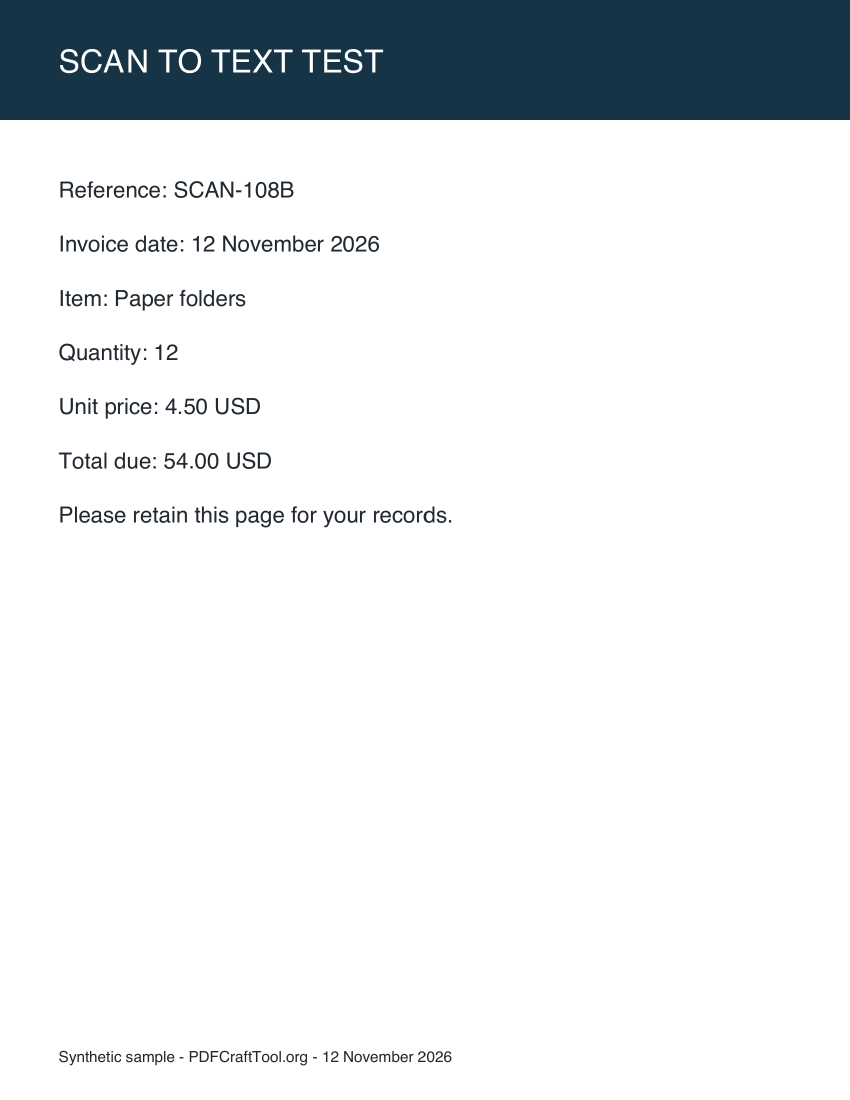
The saved searchable output. Its appearance stays the same; we verified the added text separately by reopening and extracting it.
Troubleshooting and practical limits
If nothing is recognized, confirm the engine is available and inspect the input at a readable zoom level. A low-resolution screenshot embedded in a PDF does not gain detail simply because you request a higher OCR resolution. If the source is sideways or skewed, PdfCraft exposes rotation and cleanup options; compare a small sample before applying them to a folder.
If the output looks unchanged, try searching. Invisible text is meant to preserve the visible page. Conversely, if search works but copied paragraphs are awkward, the remaining issue may be reading order rather than recognition itself. Columns, labels and tables are particularly worth checking.
This test used clean, horizontal English print and Tesseract through PdfCraft. We did not test Chinese OCR, handwriting, damaged scans, a large batch or the embedded web version. The useful next step is a representative page from your own document, followed by an independent reopen check. For general file handling, see the first PDF workflow guide; for extracting editable office content, see our PDF to Word test.