PdfCraft Tutorial: Your First PDF Workflow
Learn how to use PdfCraft to find text, organize pages, combine documents and check your saved PDF, with a practical first-project walkthrough.
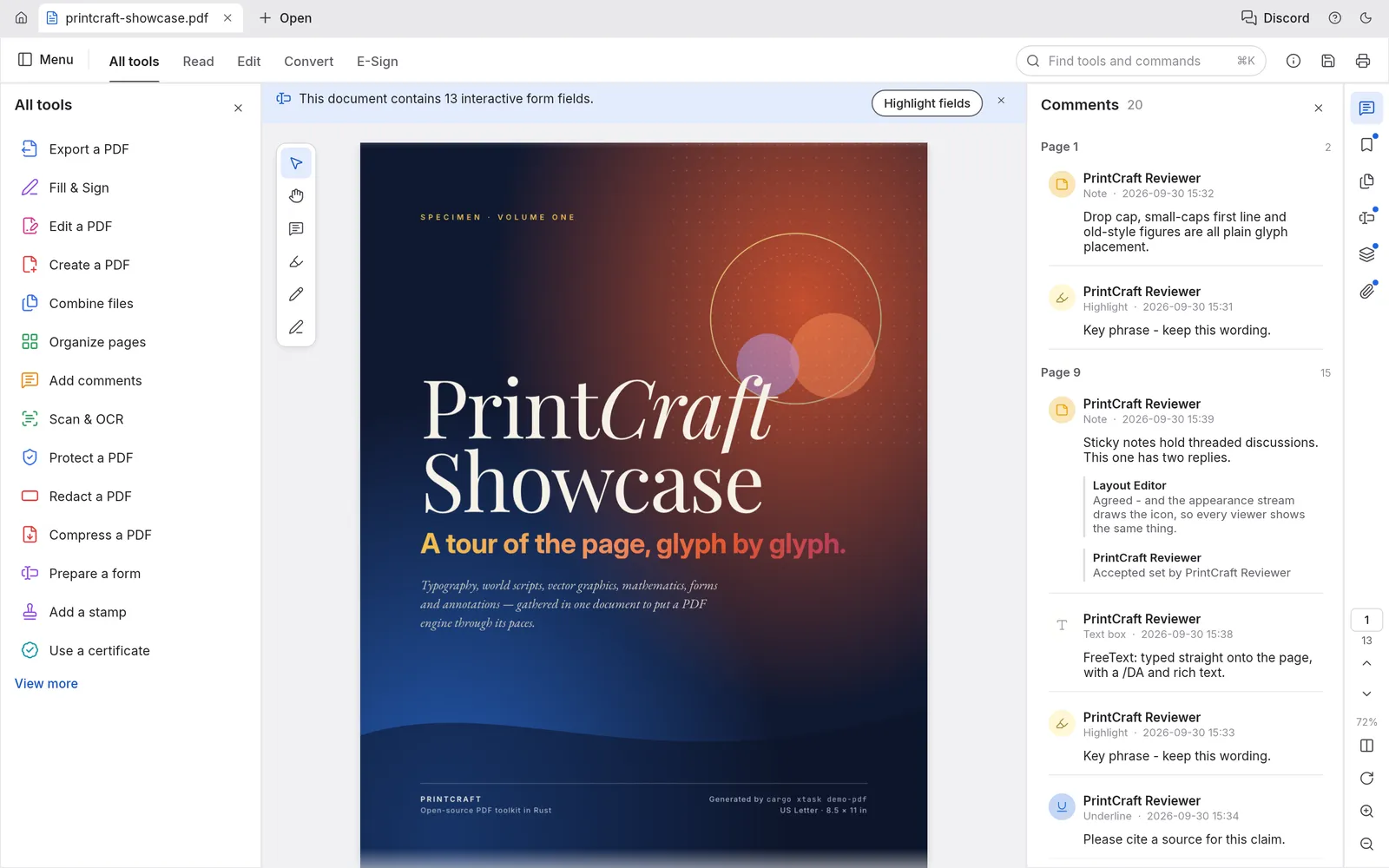
This PdfCraft tutorial walks through one useful job: turn a report and an appendix into a clean PDF you can send to someone else. You will open the report, find a passage, correct the page order, combine the files and inspect the result. Set aside two small PDFs and keep the originals in a separate folder.
New to the project? The homepage explains the desktop app and the site's browser tools. For installation, follow the Windows guide or Linux guide. This walkthrough concerns the upstream desktop app; the online tools on this website have a separate interface.
1. Open a working copy and identify the pages
Make a copy of your report named report-working.pdf. Open it with the app's Open control. Before changing anything, note the total page count, the first page and the final page. If the PDF includes a cover and contents pages, its printed page numbers may differ from its physical page positions.
Use thumbnails to recognize the page you want, rather than relying only on a number in the document footer. For example, the page printed as “1” may be the fourth page in the file. Keeping that distinction clear prevents accidentally extracting a contents page instead of the start of the report.
The project documentation describes the reading layouts and document navigation. Choose a layout you find comfortable; changing how pages appear on screen does not itself rearrange the PDF.
2. Find text before editing the document
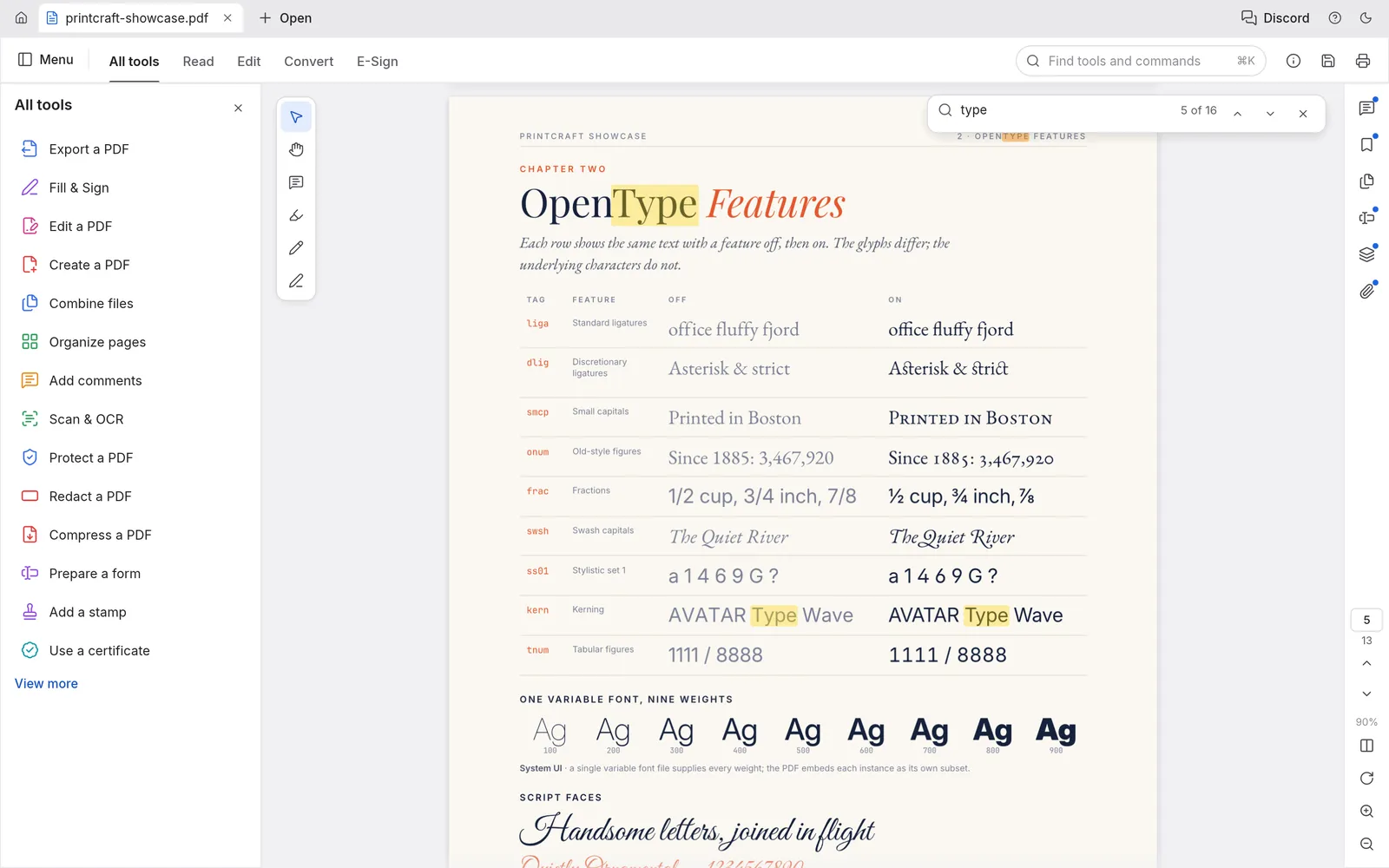
Use the document's Find control to search for a distinctive phrase from the report. Check more than the first result: a heading may appear in the contents page, the main text and an appendix. Once you find the correct passage, note its page position.
Try copying one sentence into a plain text editor. This is a quick way to see whether the file contains usable text. If a phrase is visibly present but Find returns nothing, the page may be a scanned image, or its text encoding may be unusual. A scan needs text recognition before ordinary text search can help; repeatedly changing the search spelling will not add a text layer.
3. Organize the report pages
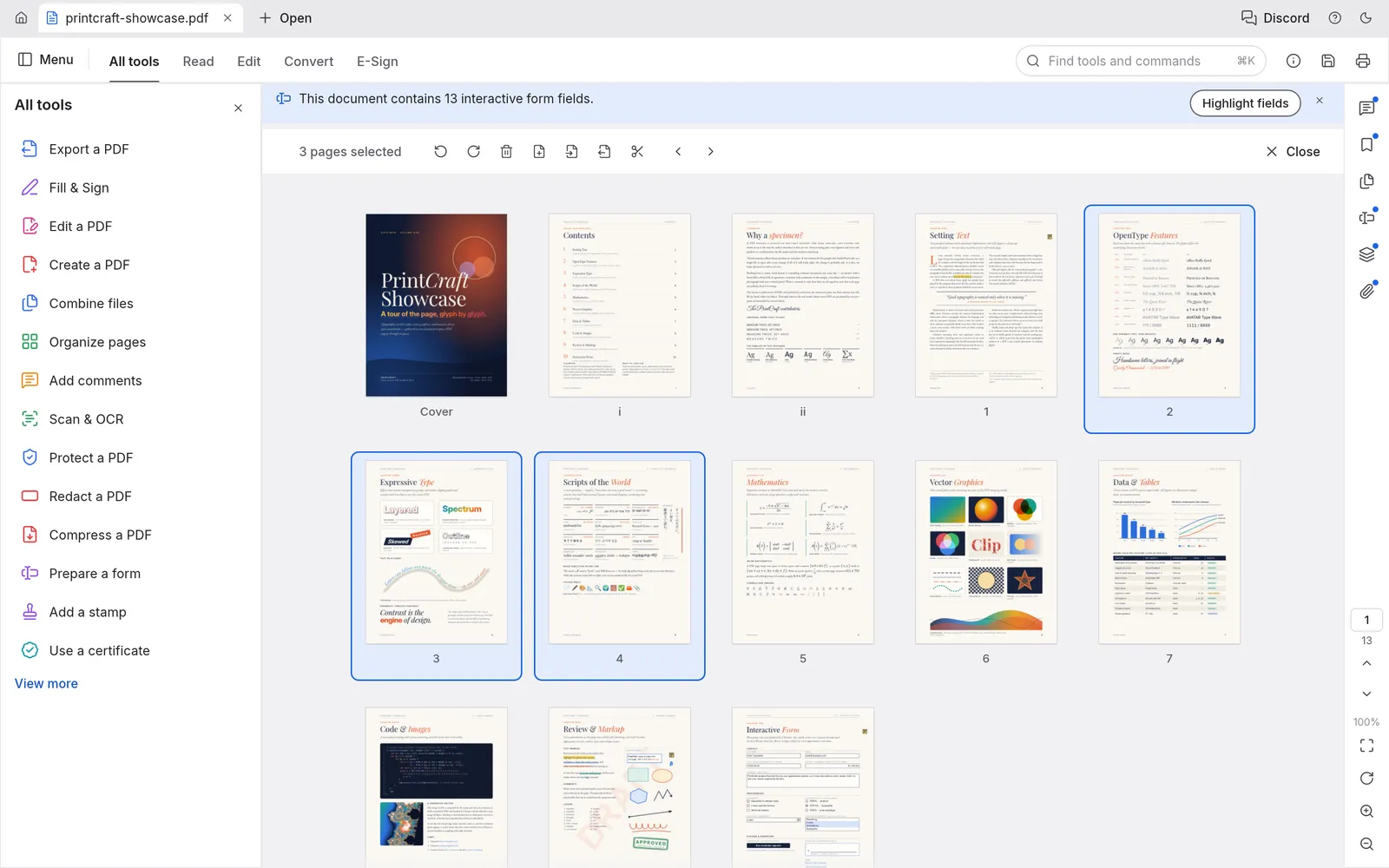
Open Organize pages and work through one change at a time:
- Identify an unwanted blank page by its thumbnail and open it to confirm that it is truly empty.
- Select and remove that page, then check the new page count.
- If one page is sideways, select that page and apply the appropriate rotation.
- Move a misplaced appendix page to the intended position and inspect its new neighbors.
- If the result is wrong, undo that individual change before continuing.
These operations are documented in the upstream page organization guide. On your first attempt, avoid a large multi-page selection: a single-page edit is easier to inspect and reverse.
A useful practice example is a six-page report with an intentionally blank page at position 3. Removing only that page should leave five pages, with the old pages 4, 5 and 6 following the old page 2. Write down your expected order before making the change.
4. Combine the report and appendix
Use Combine files to add the working report first and the appendix second. Review the input list before creating the combined document. If you only need a few pages from the appendix, extract those pages into a separate PDF first, then combine that smaller file.
Suppose the cleaned report has five pages and the appendix has two. Your expected combined result is seven pages. Inspect the join between pages 5 and 6 and confirm that the appendix begins after the report. Counting pages will catch a duplicate file, but it will not catch two files in the wrong order; check both.
For extraction and splitting, refer to the combine and split documentation. Use a separate output filename so that your inputs remain easy to compare.
5. Save, close and reopen the output
Save the completed document as something recognizable, such as report-with-appendix.pdf. Close it, reopen the saved file from its folder and inspect that copy. This verifies the file you will actually share, rather than only the document still open in memory.
Before sending it, check the page count, page order, rotation and a searchable sentence. If your source includes bookmarks, links or form fields, try one of each in the output. Opening the saved PDF in a second viewer is a useful extra check when another person will read it in different software.
Work through a realistic report example
Imagine a six-page monthly report: a cover, a contents page, an accidental blank page and three pages of findings. You also have a two-page appendix. Your target is a seven-page deliverable: five report pages followed by two appendix pages. This is an example to practice with, not a claim about a bundled sample file.
First, copy both inputs into a working folder and rename the copies clearly. Open the report, inspect its third physical page and confirm that it is the blank you intend to remove. After deletion, check that the first findings page follows the contents page. Save this five-page intermediate file under a new name.
Next, combine that intermediate report with the two-page appendix. Check the final page count and open each page around the join. If the appendix has its own printed page numbers, do not “correct” them simply because they restart at 1; printed numbering and physical order can legitimately differ. Finally, reopen the seven-page output and search for a phrase from both the report and the appendix.
This method makes mistakes easier to locate. If the final document has eight pages, check whether the blank was removed. If it has twelve, look for the original report being added a second time. If it has seven but begins with the appendix, fix input order rather than deleting pages to compensate.
Choose the right operation for the job
Combine brings documents together. Use it when a report and its supporting pages should travel as one file. Check whether the recipient still needs the supporting material as a separate attachment before combining everything.
Extract creates an output from selected pages. Use it when someone only needs a chapter or a short evidence packet. Decide whether you need consecutive pages or a specific set, and verify the selection against thumbnails.
Split produces several outputs from one input. It suits a repeated division, such as separating a large packet into small groups. Before processing a long file, try a short copy and check the output names and page counts. A split into equal page groups will not automatically understand where an arbitrary chapter ends.
Rotate changes page orientation in the saved document when performed through a page-editing operation. A viewer's temporary view rotation may only affect how you read the file. Reopening the output in another viewer is a practical way to check the difference.
Keep your work easy to recover and hand over
Use names that describe the document's purpose and stage: report-original.pdf, report-cleaned.pdf and report-with-appendix.pdf are easier to distinguish than several files named “final.” Put the finished deliverable in its own folder when you are ready to share it, so you do not attach the wrong intermediate version.
If an operation fails, stop at that step. Record the selected pages and the expected result, reopen the last good copy and repeat a smaller operation. Trying several unrelated repairs in a row makes it difficult to tell which change caused the problem. For an upstream issue report, a short sample that reproduces the same behavior is more useful than a large confidential document.
Common first-use questions
Why can I select a whole page but not change a sentence?
Page organization and text editing are different operations. Open the relevant editing tool for a text change, and check whether your installed release supports the operation you need. A text-shaped image in a scanned page is not an ordinary text object. Consult the release notes when a tool's behavior differs from a tutorial.
Why are the screenshots slightly different from my app?
The project evolves, and operating systems place controls differently. Use the tool's name and purpose to find it. This guide uses upstream showcase screenshots; some sample documents and labels use the name PrintCraft.
What should I learn next?
Use the task-by-task tutorials for individual tools. If you are replacing an existing Adobe workflow, work through the Acrobat migration checklist with your own files before changing your default PDF app.
Screenshots come from the upstream project showcase; some document and interface labels say PrintCraft. Appearance and available tools vary by release and platform. View the upstream project