PdfCraft on Linux: Ubuntu, Mint, Flatpak and AppImage
Install PdfCraft on Linux with a suitable package, check CPU architecture, run Flatpak or AppImage builds and troubleshoot first-launch issues.
To install PdfCraft on Linux, choose a package that matches both your distribution and CPU architecture. A Debian package is a natural option on Ubuntu or Linux Mint; Flatpak offers a sandboxed installation, and AppImage is useful when you want a standalone application file. Start with one method so you know which copy you are launching.
The homepage introduces the app, and the download overview describes its platforms. For current files, use the official release page. A filename in a guide is only an example: releases can add packages or change their requirements.
1. Identify the architecture and package format
Run uname -m in a terminal. An x86_64 result usually corresponds to the x86_64 download; aarch64 identifies 64-bit ARM. Avoid choosing a package merely because it says “Linux.” The official download page lists architecture-specific assets.
Choose the format that fits how you maintain your machine:
- Ubuntu, Debian and Linux Mint: use a compatible
.deb, or choose Flatpak or AppImage. - Fedora and other RPM systems: use the appropriate
.rpmand your distribution's package manager. - Arch and derivatives: check whether the selected release provides a compatible
.pkg.tar.zst. Otherwise, consider the available standalone formats. - A portable trial: start with AppImage if your system meets its runtime requirements.
Do not assume a package exists in your distribution's repositories just because the project publishes a downloadable file. Repository setup and installing a local package are separate tasks.
2. Install a local package on Ubuntu or Mint
Download the .deb for your architecture. In a terminal opened in the download directory, install the exact file you obtained. Replace VERSION below with the filename's version; the example assumes an x86_64 package.
sudo apt install ./pdfcraft-VERSION-linux-x86_64.deb
The ./ tells the package manager that you are providing a local file. Read its dependency and installation summary before accepting. A local package does not automatically imply that a repository has been configured for future updates; check the release's update instructions.
Ubuntu's application installation guidance explains local package installation. Launch the installed app from your desktop's application menu and open a small PDF before trying a large document collection.
3. Install a downloaded Flatpak bundle
First make sure Flatpak is available on your distribution. If you downloaded a .flatpak bundle, install that exact file for your user:
flatpak install --user ./pdfcraft-VERSION-linux-x86_64.flatpak
flatpak list --app
Review any runtime requirements reported by Flatpak. Then launch the application from your desktop menu. If you prefer flatpak run, take the application ID from the installed-app list instead of guessing it from the project name.
The Flatpak documentation covers single-file bundles and common commands. A downloaded bundle is different from installing from a configured remote. Follow the publisher's instructions if you want repository-managed updates.
If a file is not visible inside the app, try selecting it through the normal file picker. Check the sandbox permissions and file-picker integration before granting broad filesystem access.
4. Run the AppImage
After downloading the matching AppImage, make that file executable and run it from the terminal. Replace the example filename with your actual download:
chmod u+x ./pdfcraft-VERSION-linux-x86_64.AppImage
./pdfcraft-VERSION-linux-x86_64.AppImage
Running from a terminal makes startup errors easier to read. If you see a FUSE or shared-library error, use the guidance for your distribution and AppImage runtime, or try a compatible package format. Do not assume every distribution requires the same dependency command. The AppImage user guide describes execution and troubleshooting.
When the release includes a checksum file, calculate the downloaded file's hash with sha256sum and compare it with the matching entry from the same release. Verify the package before making it executable.
5. Check the first saved PDF
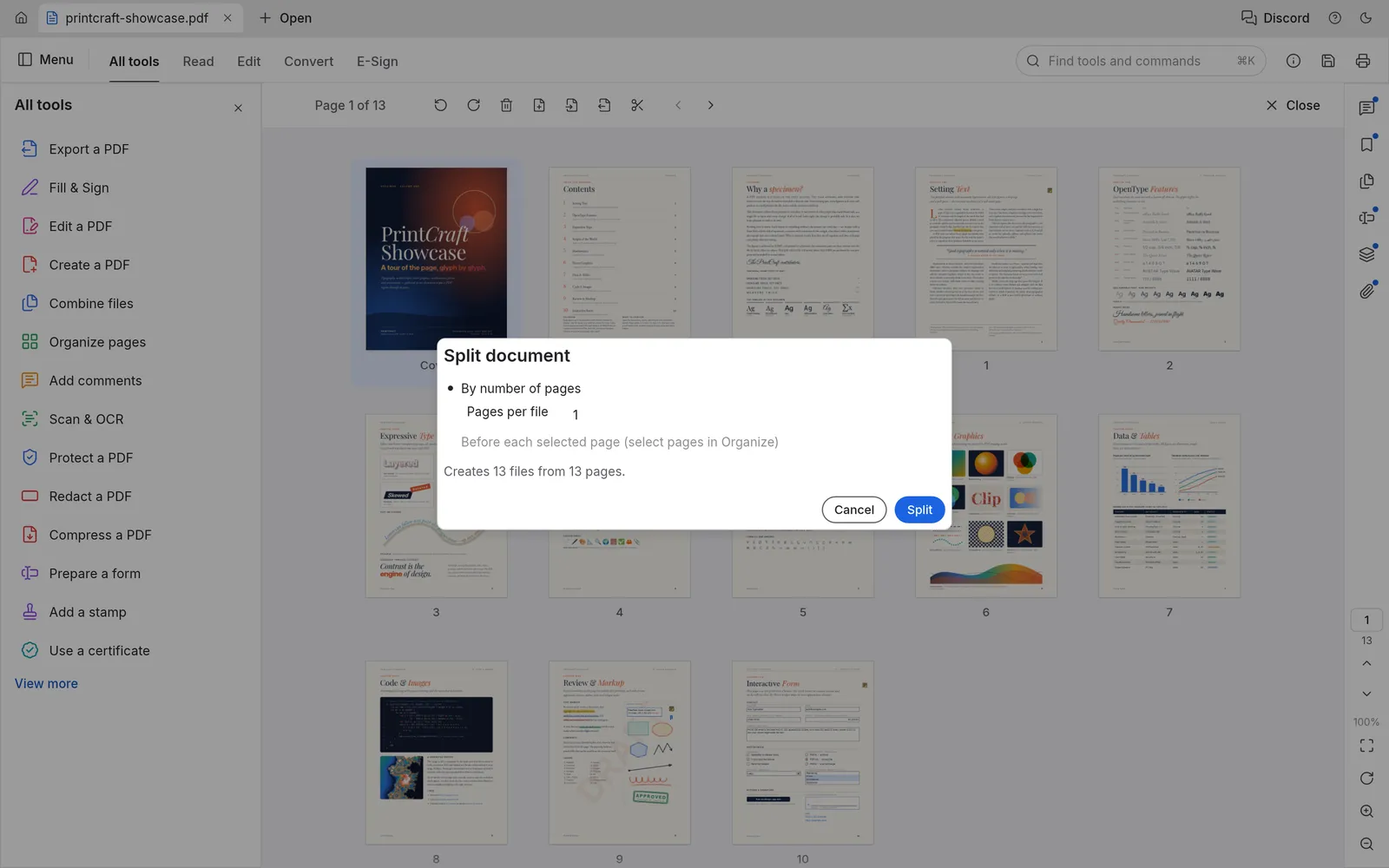
Use a copy of a three-page PDF as your first test. Open it, search for a word, then extract or split a small selection into a separate output. Reopen the result and verify that it contains exactly the intended pages in the intended order.
If the app launches but one PDF fails, that is different from an installation failure. Compare it with a simple PDF, note the application version and preserve the original document. If two different package formats are installed, confirm which one is opening your files before comparing their behavior.
Diagnose launch problems in a useful order
Start with the architecture. A package for the wrong CPU will not become compatible by changing its file permissions. Compare uname -m with the filename, then confirm that you selected a desktop package rather than source code or a web archive.
Next, distinguish “file not found” from “permission denied.” A file-not-found error may simply mean the terminal is in a different directory or the filename was typed incorrectly. Use the actual path to the downloaded file. A permission error on an AppImage can indicate that the executable bit is missing, or that the storage location does not permit execution. Making the file writable is not the same as making it executable.
If the application starts but cannot open a document, move a non-sensitive test copy to a normal local document folder and choose it through the file picker. This separates a PDF parsing problem from access to a network mount, removable disk or sandbox-restricted folder. Keep the original where it is; the test copy is only for diagnosis.
When the message names a missing runtime or library, record the exact message and distribution version. Follow the relevant package documentation instead of installing random dependencies from an unrelated guide. A native package and an AppImage can have different runtime assumptions even when they contain the same app version.
Keep one installation and update path clear
Linux makes it easy to accumulate multiple copies: a native package, a Flatpak and an AppImage in Downloads can all coexist. That is useful for a controlled comparison, but confusing during everyday work. Pick one primary installation method and note how it receives updates.
For a downloaded local package, check whether an update repository was separately configured. For a Flatpak, inspect its installed information and origin rather than assuming every bundle is connected to a remote. For an AppImage, check the publisher's update instructions and preserve a working copy until the replacement has passed your document checks.
After an update, repeat the same small test used at installation: open a representative PDF, make one reversible change, save a separate output and reopen it. The goal is to confirm your workflow still behaves as expected, not to retest every possible feature.
A practical Ubuntu or Mint example
Suppose you have an x86_64 laptop and usually receive text reports with a short appendix. Choose one supported installation format and install its current package. Create a test folder with a copy of a report and a copy of an appendix. Open the report, search for a sentence you can see and inspect its last page.
Combine the two inputs in the intended order, save to a new filename and reopen the result. Count the pages and follow any bookmark you depend on. If these checks pass, try the same process from the folder you normally work in. A failure only when accessing that folder points to a different investigation from a failure with every local PDF.
Keep a note of the package format, app version, distribution version and failed step if you need help. Those details make an upstream issue much easier to reproduce than a report that only says “it does not work on Linux.”
Linux installation questions
Which download should I use on Linux Mint?
Start with a .deb compatible with your Mint release, or use the publisher's Flatpak bundle. AppImage is another option if its runtime requirements are met. There is no need to install all three formats to complete the same workflow.
Does an Arch package use the same command as Ubuntu?
No. Arch uses pacman rather than apt. For a compatible local package, consult the Arch pacman documentation, including pacman -U. Check the package source and architecture before installation.
What should I try after installation?
Follow the beginner tutorial for search, page organization and combining documents. The tutorial reference also includes command-line examples. If you also use a Windows computer, follow its separate installation guide.
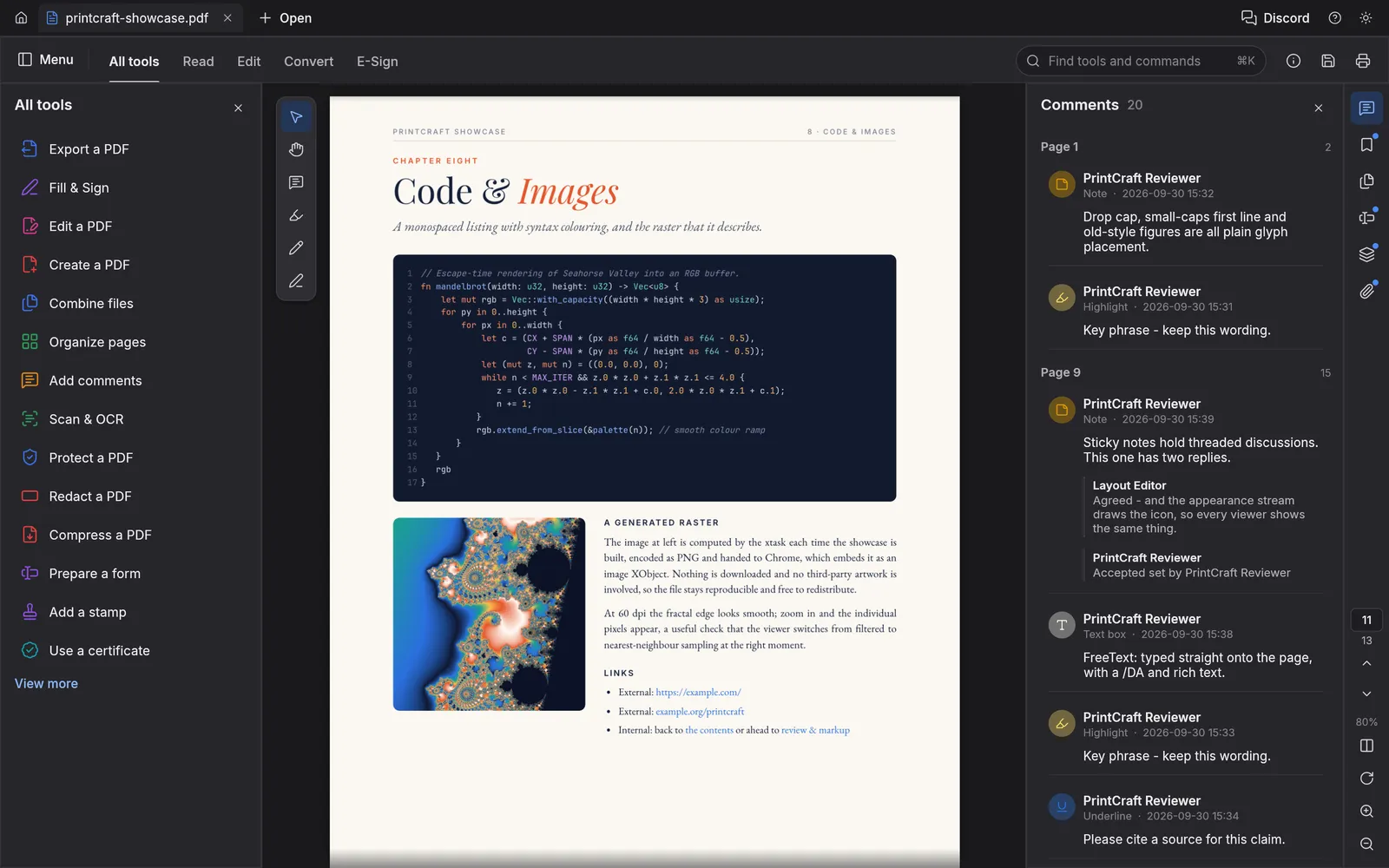
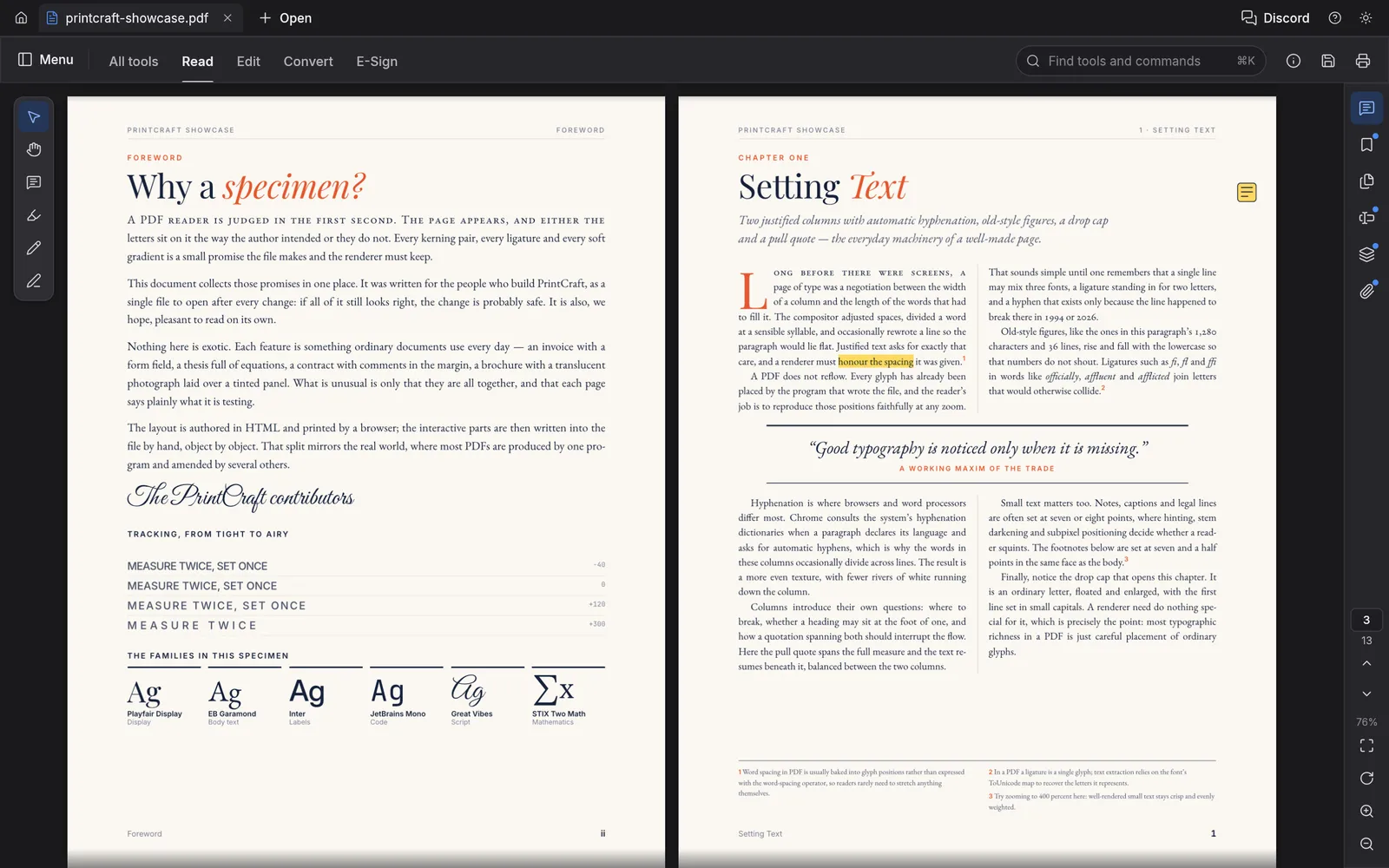
Screenshots come from the upstream project showcase; some document and interface labels say PrintCraft. Appearance and available tools vary by release and platform. View the upstream project