PdfCraft for Windows: Installer and Portable Setup
Choose the right PdfCraft Windows download, compare MSI and portable ZIP builds, verify the file and complete a first-run PDF check.
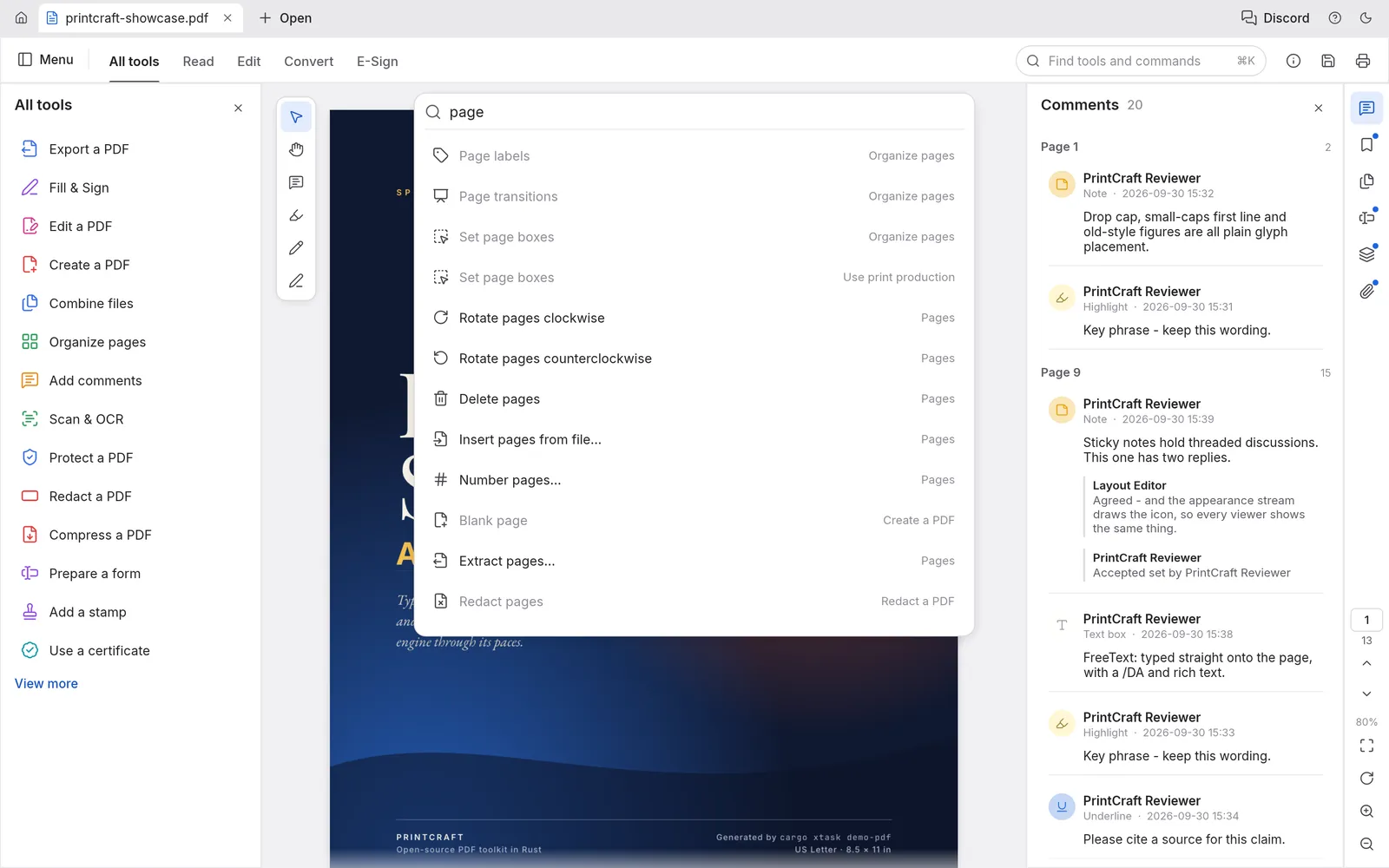
For most Windows PCs, choose the x64 MSI installer. Choose the ARM64 build for Windows on ARM, or the portable ZIP when you want to unpack the application into a folder. These are different ways to obtain the desktop app, not different PDF formats.
This guide covers selecting a package, checking it, launching the app and confirming that your first saved document works. The homepage introduces the project, while the download overview explains the supported platforms. Get the actual package from the official release list, where the available files and release notes are shown together.
1. Match the build to your PC
Open Windows Settings → System → About and check System type. Match the processor and operating-system architecture to the release filename:
- x64: the normal choice for a 64-bit Windows PC with an Intel or AMD processor.
- ARM64: the native choice for a Windows on ARM computer.
- x86: use the 32-bit package only when your system requires it and the release provides it.
Microsoft explains the distinction in its 32-bit and 64-bit Windows FAQ. The official PdfCraft download page lists the current Windows package choices. Check both the architecture and release version; a newer filename is not helpful if it belongs to a different architecture.
2. Choose MSI or portable ZIP
Use an MSI for an installation managed through the Windows installer. This is a convenient starting point if you want to launch PdfCraft like your other installed applications. Run the downloaded installer and follow its prompts, then open the app from its installed shortcut or the Start menu.
Use a portable ZIP if you prefer a folder-based copy. Extract the entire archive to a stable location, then run the application from that extracted folder. Do not launch a single executable from inside the compressed ZIP or move it away from its companion files.
Portable does not mean that every preference is guaranteed to stay inside the same folder. It also does not override an organization's application policy. If this is a managed work computer, use the installation method your administrator permits.
3. Check the download before opening it
When a release includes SHA256SUMS.txt, download that file from the same release as the package. In PowerShell, calculate the package's SHA-256 hash. Replace the example filename below with the exact file you downloaded; VERSION is a placeholder, not a version to type literally.
Get-FileHash -Algorithm SHA256 -LiteralPath '.\pdfcraft-VERSION-windows-x64.msi'
Compare the entire hash with the matching filename in the checksum file. Letter case does not affect the hexadecimal value. A mismatch means you should stop and download the matching package again. Microsoft documents the command in Get-FileHash.
A matching checksum confirms that the file matches that published checksum. It does not by itself establish who published either file, so check that you are using the intended upstream release page as well.
4. Make a small first-run test
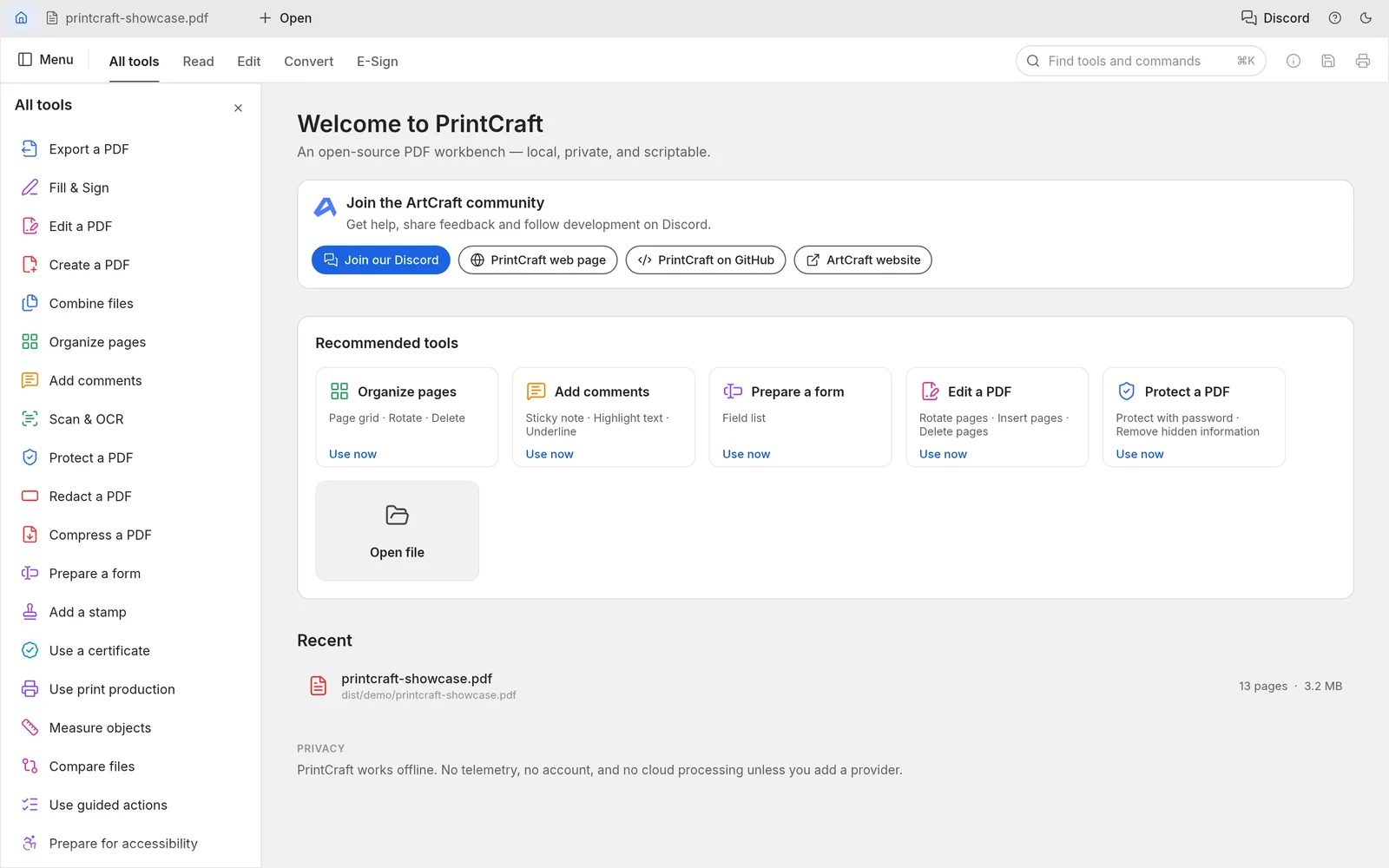
Before changing your default PDF app, try this short workflow with a copy of a document:
- Open a PDF containing ordinary selectable text.
- Search for a word you can see on the page.
- Open the page-organizing tool and rotate a single page, then undo that change.
- Save a separate output, close it and open the saved file again.
- Compare its page count and appearance with the input.
This checks opening, navigation, editing and saving with one representative file. If you regularly use forms or bookmarks, include one of those documents in your trial too. The beginner tutorial walks through a longer report-and-appendix example.
Troubleshoot the symptom you actually see
The app cannot run on this PC. Recheck the architecture and the operating-system requirements in the release notes. Confirm that you downloaded the desktop package rather than a source-code archive or web build.
The portable copy starts and immediately closes. Extract the full archive again into a fresh folder and confirm that all accompanying files are present. Record any error message rather than repeatedly replacing only the executable.
Windows displays a security warning. Read the warning and verify the source and checksum. Do not disable Windows security or treat an “unknown publisher” message as a reason to bypass every warning. On a managed device, ask the administrator to review the package.
One document fails but others work. Try a small, known-good PDF. If that opens, keep the failing original and note the app version and exact action that triggers the problem. Share a non-sensitive reproduction when reporting an issue upstream.
Set up a tidy portable workspace
If you selected the portable build, give it a stable folder rather than leaving it among unrelated downloads. Keep the extracted application files together, and create a shortcut to the executable if that suits your workflow. Store your PDFs in a separate document folder so replacing the app does not mix program updates with your working files.
For a trial, make a small folder with one plain-text PDF, one longer report and one form you are permitted to test. Use copies and give every output a distinct name. After a few successful tasks, you can decide whether the portable arrangement is convenient or whether an installed copy is easier to maintain.
When keeping two versions temporarily, label their folders with the version numbers. Launch the intended copy directly and check its version information before comparing results. Otherwise, a shortcut pointing to an older folder can make a successful update look as though it did nothing.
Decide when to make PdfCraft the default
You can test PdfCraft by opening documents from within the application without changing Windows file associations. This keeps the first evaluation simple: you know which app you launched and which file you selected.
Consider a default-app change only after your ordinary documents open, save and reopen correctly. Think about PDFs opened from email, a browser download and a shared folder. They may all end up using the same file association even though their workflows are different. If a specialist document still needs another application, keep an easy way to open it there.
A useful acceptance check is to complete a real task from start to finish: receive a sample PDF, open it, make the intended change, save it to a known folder and reopen that saved output. This is more meaningful than checking only whether the application window appeared after installation.
Windows setup questions
Do I need to build PdfCraft from source?
Not for an ordinary desktop installation when a compatible prebuilt release is available. Choose the appropriate release asset rather than GitHub's source-code download. Building from source is a separate developer workflow with its own toolchain requirements.
Can I use the portable copy without administrator rights?
A folder-based package may avoid a normal installer step, but execution permissions and organizational policy still apply. Do not assume that a ZIP bypasses a managed device's restrictions. If the application is blocked, have the package reviewed through the normal process.
Why does the installer work but a PDF still fail?
Installation success only establishes that the program was installed. A particular PDF may be damaged, password-protected, unusually structured or dependent on a feature that behaves differently in your release. Test another small file to separate application startup from document handling, and preserve the original failing file.
Should I keep the downloaded ZIP or MSI?
Keeping the exact installer and its release notes can help you reproduce a setup later. Store them separately from your documents and record which version you installed. If you replace the download with a newer release, keep enough information to distinguish the two when troubleshooting.
Updates and the next step
Before updating a portable copy, close the app and preserve the older folder until you have checked the replacement. For an installed copy, follow the release's update instructions. Check for newer downloads on the official release page rather than assuming a filename copied from an old tutorial remains current.
Once the first-run checks pass, continue with the PdfCraft tutorial. If you are evaluating it against Adobe software, use the migration checklist to test the documents that matter to your work.
Screenshots come from the upstream project showcase; some document and interface labels say PrintCraft. Appearance and available tools vary by release and platform. View the upstream project